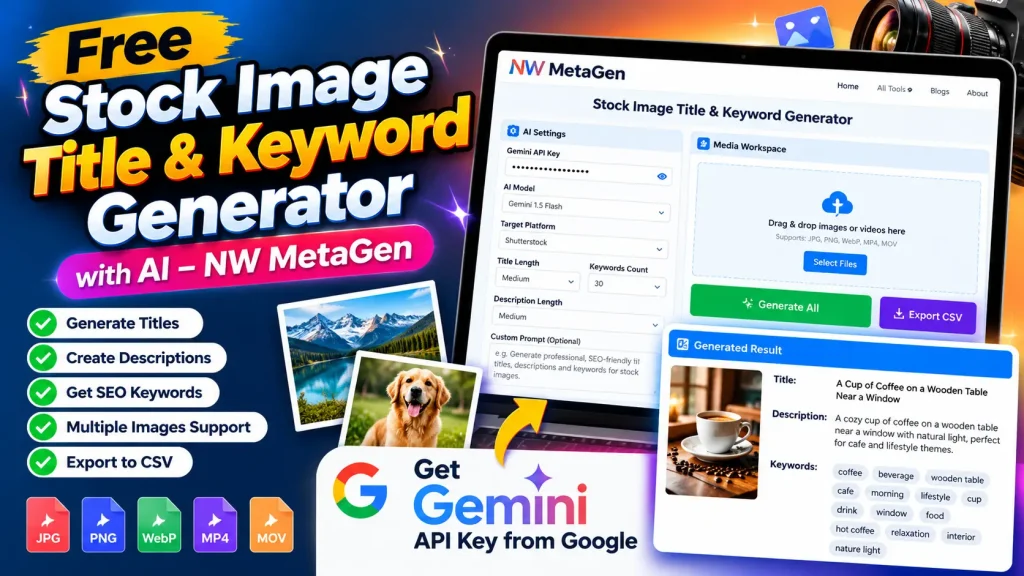
Free Stock Image Title & Keyword Generator with AI – Complete Guide
Are you looking for an easy way to generate stock image titles, descriptions, and keywords? The Stock Image Title & Keyword Generator by NW MetaGen helps photographers, designers, and content creators prepare image metadata using AI.
Creating titles and keywords manually for hundreds of images can be time-consuming. With an AI-powered image metadata generator, you can simplify this process, improve your workflow, and organize your visual content more efficiently.
In this guide, you will learn how to use the Stock Image Title & Keyword Generator, how to get a Gemini API key from Google AI Studio, and how to generate titles, descriptions, and keywords for your images.
Try the tool here: Stock Image Title and Keyword Generator by NW MetaGen
What Is a Stock Image Title & Keyword Generator?
A Stock Image Title & Keyword Generator is an online tool designed to help users create descriptive metadata for photographs, illustrations, graphics, and other visual assets.
Image metadata usually includes three important elements:
1. Image Title: A short and descriptive title explaining the main subject of the image.
2. Image Description: A sentence or short paragraph describing the image’s subject, setting, and relevant visual details.
3. Image Keywords: Relevant words and phrases that describe the image and help users identify its content.
For example, if you have a photograph of a coffee cup on a wooden table near a window, a suitable title might be:
“Coffee Cup on a Wooden Table Near a Window”
Relevant keywords could include coffee, beverage, wooden table, cafe, morning, and lifestyle.
Instead of writing this information manually for every image, you can use an AI-powered generator to create a starting point and then review the results.
Key Features of the NW MetaGen Stock Image Generator
The NW MetaGen Stock Image Title & Keyword Generator provides several features designed to simplify image metadata creation.
1. AI-Powered Image Title Generation
Generate descriptive titles for your images based on their visible content. Clear titles help identify the main subject and provide useful context.
2. Automatic Image Description Generation
Create descriptions that explain the main subject, setting, and other relevant visual details.
Always review generated descriptions to make sure they accurately represent your images.
3. Stock Image Keyword Generation
Generate relevant keywords for photographs and creative assets. Accurate keywords can help you organize your collection and prepare image metadata for compatible stock photography platforms.
4. Multiple Image Processing
The tool’s interface supports adding multiple files to the media workspace, helping reduce repetitive work when preparing metadata for a collection.
5. Customizable AI Settings
The available settings include options for the target platform, AI model, prompt style, title length, number of keywords, and description length.
These options allow you to adjust the generated output according to your workflow.
6. Support for Images and Videos
The tool lists support for JPG, PNG, WebP, MP4, and MOV files.
Available processing capabilities may depend on the current implementation, file size, and API limitations.
7. CSV Export
After generating metadata, you can export your results using the CSV export option. CSV files can be opened in spreadsheet applications for further editing and organization.
How to Get a Gemini API Key from Google AI Studio
The Stock Image Title & Keyword Generator provides an option to configure a Gemini API key for its AI functionality.
A Gemini API key allows a compatible application to authenticate requests to Google’s Gemini API.
Follow these steps to get your API key.
Step 1: Open Google AI Studio
Visit the official Google AI Studio website:
Sign in using your Google account and follow the instructions displayed on the website.
Step 2: Open the API Keys Section
After signing in, locate the API Keys section in Google AI Studio.
You can also read Google’s official documentation here:
https://ai.google.dev/gemini-api/docs/api-key
This documentation explains how to create and manage Gemini API keys.
Step 3: Create a New API Key
Click the option to create an API key and follow the instructions.
Depending on your account and existing Google Cloud projects, you may need to select or create a project before generating a key.
Follow the on-screen instructions to complete the process.
Step 4: Copy Your Gemini API Key
Once the key has been created, copy it from the API Keys section.
Important security advice:
- Never publish your API key on your website.
- Do not share your key in public screenshots or videos.
- Do not commit your key to a public code repository.
- Monitor API usage and applicable charges.
- Revoke or replace the key if you believe it has been exposed.
Google’s free usage availability and limits depend on the model, account, and current service terms. Some usage may incur charges.
Step 5: Open the Stock Image Title & Keyword Generator
Now visit the NW MetaGen tool:
Find the Gemini API key field in the tool’s settings.
Step 6: Enter Your API Key
Paste your Gemini API key into the appropriate field and follow the instructions provided by the tool.
The interface indicates that API keys are stored in your browser. However, browser storage alone does not guarantee complete security. Before entering a key, review how the tool handles API requests and protects credentials.
Use only an API key that you are authorized to use.
Step 7: Configure Your AI Settings
After configuring the API key, select your preferred options.
Depending on the available settings, you may be able to customize:
- AI model
- Target platform
- Prompt style
- Title length
- Number of keywords
- Description length
- Additional prompt instructions
Choose settings that suit your content and the requirements of your intended platform.
Step 8: Test Your API Configuration
Start with one image to check whether the tool works correctly.
If you receive an error, verify that the API key is valid, the selected model is supported, and your account has available quota.
You can consult Google’s official Gemini API documentation for additional troubleshooting information.
How to Generate Stock Image Titles, Descriptions, and Keywords
After configuring your Gemini API key, follow these steps to generate image metadata.
Step 1: Visit the Online Tool
Open the Stock Image Title & Keyword Generator:
The tool provides a workspace for adding files and configuring generation settings.
Step 2: Upload Your Images
Use the upload area or file selector to add your images.
The interface lists JPG, PNG, WebP, MP4, and MOV as supported formats.
For your first attempt, upload a single image so you can check the results before processing additional files.
Step 3: Select Your Preferred Settings
Choose your target platform, AI model, title length, description length, and number of keywords where these options are available.
For example, you might choose a concise title and a moderate number of accurate keywords.
The best settings depend on the content of your images and the requirements of your intended platform.
Step 4: Add Custom Instructions
If the tool provides a custom prompt field, use it to guide the generated metadata.
For example, you can request:
“Generate a concise, accurate image title, a clear description, and relevant keywords based only on the visible content. Avoid unrelated keywords and unsupported assumptions.”
Custom instructions can help you obtain more consistent results, but you should still review the output.
Step 5: Generate the Metadata
Click the Generate All button or the appropriate generation control displayed by the tool.
Wait for processing to finish. Processing time may vary depending on the number of files, selected model, and available API quota.
Step 6: Review the Generated Results
Check each title, description, and keyword list carefully.
Make sure the metadata accurately describes the image, remove duplicate keywords, correct errors, and eliminate unrelated terms.
Do not submit unreviewed AI-generated metadata to stock photography websites.
Step 7: Export the Results to CSV
When you are satisfied with the output, use the Export CSV option.
Save the file and open it in a spreadsheet application if you want to edit, organize, or review the generated metadata.
Before importing the file into another platform, confirm that its format matches that platform’s requirements.
Why Are Image Titles and Keywords Important for SEO?
Image titles and keywords help describe and organize visual content. Their usefulness depends on where and how the metadata is used.
Better Image Organization
Descriptive titles and keywords make it easier to organize a large collection of photographs by subject, location, activity, or project.
Improved Image Discoverability
Relevant metadata can help users understand an image’s content and may support discovery on platforms that use the information for search.
More Efficient Content Creation
Generating metadata with AI can reduce repetitive writing and give photographers more time to focus on image quality and content preparation.
Consistent Metadata
A consistent workflow helps maintain clear titles, descriptions, and keywords across an image collection.
Remember that metadata alone does not guarantee higher search rankings, more downloads, or additional sales.
Tips for Creating Better Stock Image Keywords
Follow these tips to make your image metadata more useful.
1. Describe the Main Subject
Start with the most important subject shown in the image.
2. Include Relevant Details
Add accurate details about the setting, activity, objects, and composition when appropriate.
3. Avoid Keyword Stuffing
Do not add unrelated popular search terms simply to attract more visitors.
4. Use Clear and Natural Titles
Write titles that describe the image naturally instead of repeating the same keywords unnecessarily.
5. Remove Duplicate Keywords
Review the generated keyword list and remove unnecessary repetitions.
6. Follow Stock Platform Guidelines
Different stock photography websites have different metadata requirements. Check the rules of your chosen platform before submitting your content.
7. Review AI-Generated Content
AI may misunderstand an image or generate incorrect information. Human review is essential for maintaining accurate metadata.
Who Can Use the Stock Image Title & Keyword Generator?
The NW MetaGen tool may be useful for:
- Stock photographers preparing image submissions.
- Graphic designers managing creative assets.
- Digital artists organizing their portfolios.
- Content creators preparing visual content.
- Video creators organizing supported video files.
- Businesses maintaining image libraries.
- Freelancers handling image metadata for clients.
Whether you manage a small collection or a large number of visual assets, AI-assisted metadata generation can help simplify your workflow.
Frequently Asked Questions
1. Is the Stock Image Title & Keyword Generator free?
The tool is available through the NW MetaGen Free Tools website. However, AI generation may require a Gemini API key, and API usage may be subject to quotas, eligibility requirements, or charges.
2. How can I get a Gemini API key?
Visit Google AI Studio, sign in, open the API Keys section, and follow the instructions to create a key.
Official website: https://aistudio.google.com/
3. Can I generate keywords for multiple images?
The tool’s interface supports adding multiple files and provides a Generate All option. Processing capacity may depend on the current implementation and API limits.
4. Which file formats are supported?
The interface lists JPG, PNG, WebP, MP4, and MOV. Check the tool for any additional restrictions.
5. Can I export generated keywords to Excel?
Yes. The tool provides a CSV export option. You can open CSV files in Microsoft Excel or compatible spreadsheet applications.
6. Are AI-generated image keywords always accurate?
No. AI can produce inaccurate, duplicate, or irrelevant keywords. Always review the generated metadata before using it.
7. Will using this tool guarantee more stock image sales?
No. Accurate metadata can help describe your content, but sales depend on image quality, market demand, competition, platform policies, and other factors.
Conclusion
The NW MetaGen Stock Image Title & Keyword Generator is designed to help photographers, designers, and content creators prepare image titles, descriptions, and keywords with AI assistance.
Its customizable settings, multiple-file workspace, and CSV export can help simplify repetitive metadata tasks.
You can also configure a Gemini API key through Google AI Studio to access the AI functionality supported by the tool.
Remember to protect your API key, monitor usage, and review all generated metadata before publishing or submitting your work.
Ready to get started?
Visit the Stock Image Title & Keyword Generator and try it with your own images.


